Getting Started Guide
Welcome to CentrAds!
This guide walks you step by step to configure your account and launch your first ad campaigns. In a few minutes, you'll be ready to centralize and optimize all your advertising.
Step 1 : Choose your subscription
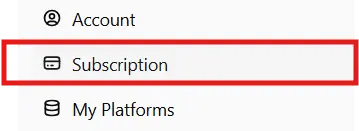
- Go to the "Subscription" section in the left menu to select the plan that suits your needs.
Step 2 : Connect your ad platforms
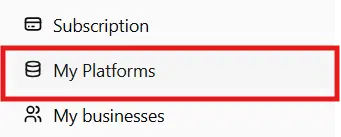
- Open the "My Platforms" section in the left menu. You can connect existing ad accounts or create new ones.
- Already have ad accounts? Just click the platform you want to connect:
Step 3 : Create your first Business
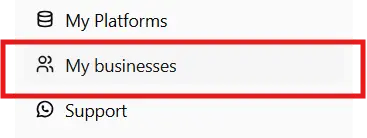
- A Business in CentrAds works like a Business Manager. It is a workspace that groups all your campaigns, whether on a single platform or across many.
- Why create a Business? Better organization, overview, and simplified management.
- How? Go to "My Business", click "Create a Business", name it, then validate.
Step 4 : Link your platforms to your Business
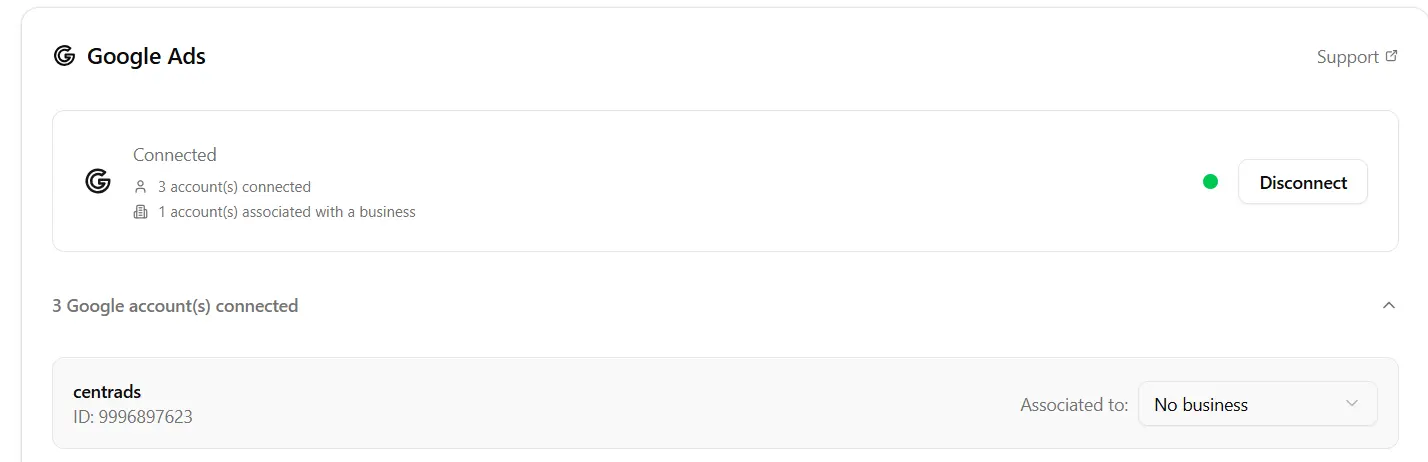
- Now that your Business is created and platforms are connected, associate them!
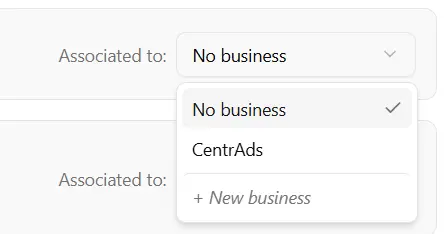
- In "My Platforms", for each connected account, use the "Associated to" dropdown to select the Business.
- Tip: You can link multiple different platforms to the same Business, but not two accounts from the same platform to one Business.
Step 5 : Create your first campaign
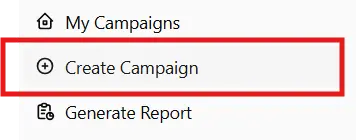
- Go to "Overview" or "My Campaigns", click "Create a campaign", choose a linked platform (Meta, Google, LinkedIn...), then fill in the campaign details.
Step 6 : Track results in real time
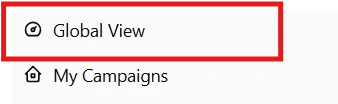
- In "Overview", view your performance (impressions, clicks, conversions, cost per result), compare platforms and receive recommendations.
Need help?
- Check our detailed tutorials for each platform
- Open "Support" to access our help center
admin@centrads.com
Steps summary
- ✅ Step 1: Choose your subscription
- ✅ Step 2: Connect your ad platforms
- ✅ Step 3: Create your Business
- ✅ Step 4: Link platforms to your Business
- ✅ Step 5: Create your first campaign
- ✅ Step 6: Track results and optimize
Estimated time: 15-20 minutes
Need more help?
Here is a detailed video showing how it works